
Copy Text from One File to Another in Python is a crucial skill for anyone dabbling in programming. Imagine effortlessly managing data, automating reports, or organizing files with ease – sounds great, right? This blog will delve into these tasks and unveil techniques to streamline your coding workflow. Curious? Keep reading!
What Does Copying Text Between Files Mean in Python?
Copying text between files in Python means reading data from one file (the source file) and writing that same data into another file (the destination file) using Python’s file handling functions.
This is a common task in automation, data processing, logging systems, backups, and ETL workflows.
At a technical level, the workflow follows a simple I/O pipeline:
Source File → Read Operation → Write Operation → Destination File
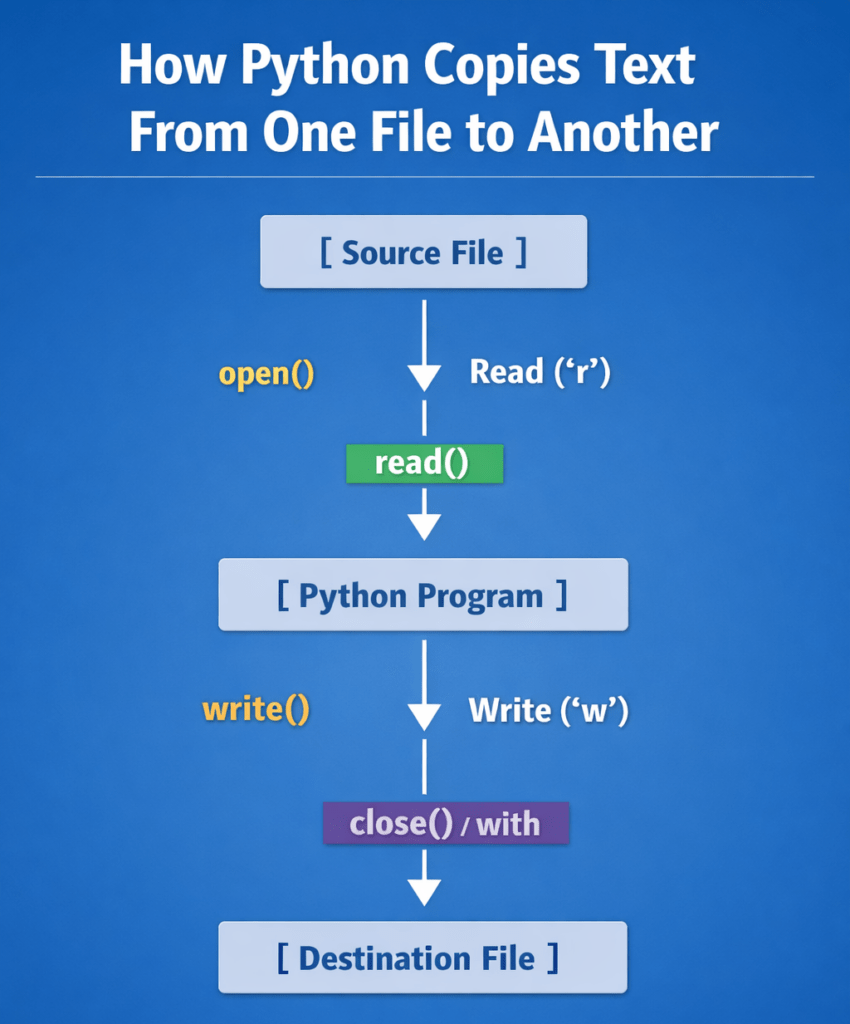
Core Concept Breakdown
1) Reading from Source File
Reading means retrieving the contents of an existing file into memory so Python can process or transfer the data.
Python uses read mode to access file contents.
Typical operation:
- Open file
- Read data
- Store data in a variable
2) Writing to Destination File
Writing means saving data into another file.
If the destination file does not exist, Python will create it automatically when opened in write mode.
Typical operation:
- Open destination file
- Write data
- Save changes
3) Using Python File Handling
Python provides built-in functions to manage files safely and efficiently.
The standard workflow is:
- Open the file
- Perform read or write operation
- Close the file
Modern best practice is to use the with statement, which automatically handles file closing and resource cleanup.
Key Terms You Should Know
| Term | Definition |
|---|---|
| Source File | The file you read data from |
| Destination File | The file you write data into |
| Read Mode (“r”) | Opens a file to read its contents |
| Write Mode (“w”) | Opens a file to write data (overwrites existing content) |
Method 1 -Copy Text Using read() and write()
This is the most basic and straightforward method. It demonstrates the core mechanics of file copying.
How It Works
- Open source file
- Read content
- Open destination file
- Write content
- Close both files
Example Code
source = open("source.txt", "r")
destination = open("destination.txt", "w")

content = source.read()
destination.write(content)

source.close()
destination.close()
When to Use
- Learning file handling fundamentals
- Small files
- Simple scripts
Limitation
Manual closing is required. If the program crashes, files may remain open.
Method 2 – Copy Text Using with Statement
This is the industry-standard method for file operations in Python.
The with statement automatically manages resources and ensures files are closed properly, even if an error occurs.
Why This Method Is Better
- Automatic File Closing
Python closes files automatically after the block finishes. - Cleaner Syntax
Less boilerplate code. - Safer Execution
Prevents file corruption and resource leaks.
Example Code
with open("source.txt", "r") as source:
    with open("destination.txt", "w") as destination:
        destination.write(source.read())
When to Use
Recommended for:
- Production code
- Automation scripts
- Web applications
- Data pipelines
Method 3 – Copy File Line by Line (Efficient for Large Files)
Instead of loading the entire file into memory, this method processes one line at a time.
This significantly improves memory efficiency and scalability.
Why This Method Matters
Large files can consume significant RAM if read entirely.
Line-by-line processing:
- Uses constant memory
- Improves performance stability
- Prevents memory overflow
Example Code
with open("source.txt", "r") as source:
    with open("destination.txt", "w") as destination:
        for line in source:
            destination.write(line)
When to Use
Best for:
- Large log files
- Data exports
- Batch processing
- Production systems
Method 4 – Copy File Using shutil Module (Fastest Method)
The shutil module is part of Python’s standard library and provides optimized file operations.
It copies the entire file directly at the filesystem level.
Why This Method Is Fast
- Uses optimized system-level operations
- Minimal Python overhead
- Designed for reliability
Example Code
import shutil

shutil.copyfile("source.txt", "destination.txt")
When to Use
Ideal for:
- File backups
- File duplication
- Deployment scripts
- Automation workflows
read() vs readline() vs readlines()
Understanding these three methods is important for performance tuning and memory management.
Comparison Table
| Method | What It Does | Memory Usage | Performance | Best Use Case |
|---|---|---|---|---|
| read() | Reads entire file at once | High | Fast for small files | Small files |
| readline() | Reads one line at a time | Low | Moderate | Streaming data |
| readlines() | Reads all lines into list | High | Slower for large files | Line processing |
Detailed Explanation
read()
Reads the entire file into memory as a single string.
Best for:
- Small files
- Simple scripts
Risk:
- High memory usage for large files
readline()
Reads only one line at a time.
Best for:
- Iterative processing
- Streaming data
readlines()
Reads all lines and stores them in a list.
Best for:
- When you need random access to lines
Risk:
- High memory consumption
Quick Decision Guide
Use:
- read() → Small files
- readline() → Controlled reading
- for line in file → Large files
- shutil.copyfile() → Fastest full copy
Copy Text from One File to Another in Python
python
# Open the source file in read mode and the destination file in write mode
with open('source.txt', 'r') as source_file, open('destination.txt', 'w') as destination_file:
    # Read the content of the source file
    content = source_file.read()
    # Write the content to the destination file
    destination_file.write(content)
Explanation of the Code
Let me take you through this neat little code snippet that demonstrates how to copy text from one file to another in Python.
- First, the code uses a handy feature called a context manager, indicated by the `with` keyword. This ensures your files are properly opened and closed, saving you from unnecessary headaches. You simultaneously open ‘source.txt’ for reading (‘r’) and ‘destination.txt’ for writing (‘w’).
- Next, you dive right into reading the entire content of the source file. The `.read()` method does this in one fell swoop, putting the contents into the `content` variable.
- Lastly, the code writes the content you just read into the destination file using the `write()` method. And voilà, your text is successfully copied over!
Output
Practical Uses for Copying Text Between Files with Python
- Automating Data Backup for Cloud Services
Let’s say Google Drive syncs some logs for analysis. They may want to copy these logs to a secure backup file every day. This process can easily be automated with Python, keeping their operations seamless.
Output: A backup of logs is created, ensuring data is secure even if primary files are altered or lost.
        with open('logs.txt', 'r') as src, open('backup_logs.txt', 'w') as dst:
            for line in src:
                dst.write(line)
- Efficient Template Deployment
In Netflix’s IT infrastructure, they might want to deploy templates for different regions quickly. Copying a base HTML file to another file ensures regional customisation while keeping the same structure.
Output: A new regional template file is instantly created, ready for further customisation.
        with open('base_template.html', 'r') as src, open('region_template.html', 'w') as dst:
            for line in src:
                dst.write(line)
- Version Control During Software Development
GitHub might use Python to maintain a history of code versions by copying current files before updates.
        with open('current_version.py', 'r') as src, open('v1_backup.py', 'w') as dst:
            for line in src:
                dst.write(line)
Output: A backup of the current version is stored, enabling easy rollback if required.
Common Errors When Copy Text from One File to Another in Python
When copying files in Python, most failures occur due to file location issues, permissions, or incorrect path handling. Understanding these errors helps diagnose problems quickly in production scripts and automation workflows.
1) File Not Found Error – FileNotFoundError
This error occurs when Python cannot locate the specified file.
Typical Causes
- File does not exist
- Incorrect file name
- Wrong directory
- Typo in file path
- File moved or deleted
Example Error
FileNotFoundError: [Errno 2] No such file or directory: 'source.txt'
Example Code That Triggers the Error
with open("missing_file.txt", "r") as source:
    content = source.read()
How to Fix
- Verify the file exists
- Check spelling and case sensitivity
- Confirm directory location
- Use correct path
2) Permission Error — PermissionError
This error occurs when Python does not have permission to read or write the file.
Typical Causes
- File is read-only
- Restricted directory
- File is locked by another process
- Insufficient user privileges
Example Error
PermissionError: [Errno 13] Permission denied: 'destination.txt'
Example Code That Triggers the Error
with open("/restricted/file.txt", "w") as destination:
    destination.write("data")
How to Fix
- Check file permissions
- Run script with proper privileges
- Close programs using the file
- Choose a writable directory
3) Incorrect File Path
This is one of the most common causes of file handling failures, especially for beginners.
The issue arises when Python is pointed to the wrong location.
Relative vs Absolute Path
Understanding path types is essential for reliable file operations.
Relative Path
A relative path specifies the file location relative to the current working directory.
Example
source.txt
data/source.txt
../files/source.txt
Characteristics
- Shorter
- Portable
- Depends on execution location
Risk
If the script runs from a different directory, the file may not be found.
Absolute Path
An absolute path specifies the complete location of a file from the root directory.
Example (Windows)
C:\Users\John\Documents\source.txt
Example (Linux / macOS)
/home/user/documents/source.txt
Characteristics
- Fully qualified path
- Reliable
- Independent of working directory
Best Use Case
Production scripts and scheduled jobs.
Quick Comparison-Copy Text from One File to Another in Python
| Feature | Relative Path | Absolute Path |
|---|---|---|
| Based on current directory | Yes | No |
| Portability | High | Lower |
| Reliability | Medium | High |
| Recommended for production | Sometimes | Yes |
Best Practices for Copying Files in Python
These practices improve reliability, performance, and maintainability in real-world applications.
1) Always Use the with Statement
The with statement ensures files are automatically closed, even if an error occurs.
Recommended Pattern
with open("source.txt", "r") as source:
    with open("destination.txt", "w") as destination:
        destination.write(source.read())
Why This Matters
- Prevents resource leaks
- Avoids file corruption
- Industry standard approach
- Safer error handling
2) Handle Exceptions
Proper exception handling prevents program crashes and enables controlled recovery.
Example
try:
    with open("source.txt", "r") as source:
        with open("destination.txt", "w") as destination:
            destination.write(source.read())

except FileNotFoundError:
    print("Source file not found")

except PermissionError:
    print("Permission denied")
Why This Matters
- Improves reliability
- Prevents runtime crashes
- Enables debugging
3) Validate File Existence Before Copying
Checking file existence prevents avoidable runtime errors.
Example
import os

if os.path.exists("source.txt"):
    print("File exists")
else:
    print("File not found")
Why This Matters
- Prevents
FileNotFoundError - Improves user experience
- Makes scripts safer
4) Use Line-by-Line Method for Large Files
Reading an entire large file into memory can cause performance issues.
Processing line by line keeps memory usage stable.
Recommended Pattern
with open("source.txt", "r") as source:
    with open("destination.txt", "w") as destination:
        for line in source:
            destination.write(line)
Why This Matters
- Memory efficient
- Scalable
- Production safe
5) Use shutil for Full File Copy
When the goal is to duplicate an entire file quickly, the shutil module is the most efficient solution.
Recommended Pattern
import shutil

shutil.copyfile("source.txt", "destination.txt")
Why This Matters
- Fastest method
- Built-in optimization
- Production ready
- Minimal code
Production Checklist
Use this before deploying file-copy scripts:
- Use
withstatement - Handle exceptions
- Validate file existence
- Use absolute paths in production
- Use line-by-line processing for large files
- Use
shutilfor full file copy
Copy Text from One File to Another in Python
- How do you copy text from one file to another in Python while skipping a specific line?
To skip a specific line when copying, you can use a conditional statement within a loop. Here’s a simple example:
This code will copy every line except the one containing ‘skip this line’.
with open('source.txt', 'r') as source, open('destination.txt', 'w') as destination:
    for line in source:
        if 'skip this line' not in line:
            destination.write(line)
- Can you append text to the destination file rather than overwrite it?
Yes, you can! By opening the destination file in append mode (‘a’), you can add text to the end without removing existing content.
This will append the text from the source file to the destination file.with open('source.txt', 'r') as source, open('destination.txt', 'a') as destination:
for line in source:
destination.write(line)
- What’s the best way to handle large files when copying data?
For large files, reading the entire file at once may not be efficient. Instead, copy the file line by line to manage memory usage better.
This approach uses a buffer to read and write chunks of data iteratively.
with open('huge_file.txt', 'r') as source, open('large_copy.txt', 'w') as destination:
    buffer_size = 1024
    while True:
        buffer = source.read(buffer_size)
        if not buffer:
            break
        destination.write(buffer)
- Can we copy files in binary mode and why would we do that?
Absolutely. If working with non-text files like images, use binary mode (‘rb’ and ‘wb’) to preserve file integrity:
This ensures the exact binary data is transferred, important for files other than plain text.with open('image.jpg', 'rb') as source, open('copy_image.jpg', 'wb') as destination:
destination.write(source.read()) - Is there a way to change text to uppercase while copying it to the destination file?
Certainly! You can use Python’s string method `.upper()`:
This will convert all the text to uppercase before writing it to the new file.
with open('source.txt', 'r') as source, open('destination.txt', 'w') as destination:
    for line in source:
        destination.write(line.upper())
Are you ready to elevate your coding skills? Our AI-powered python online compiler lets you write, run, and test code instantly. It’s a fantastic way to experiment without any hassle, whether you’re debugging or just playing around with new ideas! So why wait? Try it now!
Conclusion
Copy Text from One File to Another in Python can significantly enhance your programming skills by improving your understanding of file handling, a crucial aspect in coding. Give it a go and feel the satisfaction of mastering useful, real-world skills! Check out Newtum for more on programming languages.
Edited and Compiled by
This article was compiled and edited by @rasikadeshpande, who has over 4 years of experience in writing. She’s passionate about helping beginners understand technical topics in a more interactive way.
About The Author